Korean image to text uses OCR to turn Hangul in a photo, screenshot or scanned PDF into editable writing. Choose a file, compare the recognized lines with the source, correct mistakes and copy or export the result. Recognition extracts spelling; it does not guarantee accurate translation or readable handwriting.
How Do I Extract Korean Text from an Image?
Extract Korean text by selecting a source, choosing the appropriate recognition language, cropping the writing, running OCR and checking the result before copying. The success checkpoint is a transcript that agrees with the visible source, including punctuation, numbers and line order.
Choose a Source and Language
Start with one clear image or one PDF page. A screenshot is useful when the writing already appears on a screen; a camera photo is useful for a printed page or sign. Use the original file where possible. Sending an image through several messaging services can reduce detail before recognition even begins.
- Choose the source. Check that the preview shows the intended page and that the writing is readable when enlarged.
- Choose the language. Select Korean for Hangul. Include a supported additional language when the source contains meaningful English text; the interface language alone does not identify the writing.
- Prepare the region. Crop around the needed passage and straighten the page. Keep the complete first and last characters in every line.
- Run recognition. Wait for the selected region to finish. An empty result means no usable text was returned, not that the tool has translated an invisible message.
- Confirm and export. Compare each line, make corrections, then copy the confirmed passage or choose an appropriate download format.
Review before Copying
Read the output alongside the image rather than judging whether the sentence sounds plausible. A believable word can still differ from the source. Pay particular attention to personal names, dates, amounts and letters near a crop boundary.
Keep raw recognition separate from your edited transcript. Raw text records what the engine returned; edited text records your corrections. When a span remains unreadable, leave it unresolved in your notes instead of adding a guessed word. Copying a shorter confirmed passage is often more useful than exporting a whole uncertain page. Once spelling is settled, decide whether you need the original wording or an explanation of its meaning.
Korean OCR and Translation
Korean OCR transcribes visible writing into editable characters. Translation expresses the meaning in another language. These are separate operations, and an error in the transcript can become an error in the translation even when the translated sentence sounds fluent.
Does OCR Translate Korean?
OCR alone does not translate Korean. A recognized menu item remains Korean text; an English explanation requires a translation step. Similarly, romanization writes Korean using Latin letters and does not supply an English meaning. Choose the next action according to your goal: copying spelling, checking meaning or using a reading aid.
A useful workflow has three saved pieces: the source image, the corrected Korean transcript and any translated explanation. Keeping those pieces separate lets you return to the original when a translation seems strange. Replacing the original with an English sentence removes the evidence you need to check a questionable name or number.
Transcription, Correction and Meaning
Suppose a menu line contains a dish name followed by the printed amount 8,000. Recognition should preserve the visible name and amount. Correction should repair a missed comma or mistaken digit by comparison with the image. Translation should explain the dish without silently changing its price. A spreadsheet may later store 8000 as a numeric value, but that is a separate data conversion.
The same distinction matters for addresses and personal names. A translator may choose a familiar English spelling, while your task may require the exact source spelling. Retain the original alongside any explanation and check the name with its owner when accuracy matters.
Use the guide to compare Korean translator apps when you need help choosing a separate meaning check. Sending text to an outside translator is a distinct handoff with that service's own processing terms. A translation action that is unavailable cannot supply a result; copying the confirmed text gives you a transparent alternative. Understanding these boundaries makes the recognition process easier to assess.
How Does Hangul Recognition Work?
Hangul recognition turns image regions into candidate characters, then arranges those characters into lines of editable text. The engine works from the pixels it receives, so a missing stroke, clipped character or unclear line boundary can change the output before you consider meaning.
Why Do Syllable Blocks Get Misread?
Hangul is written in syllable blocks that group component letters. Recognition must distinguish the shapes within a block as well as the boundaries between neighboring blocks. A thin line lost in blur can make two shapes appear alike; a shadow can add a dark mark that the engine treats as part of a letter.
This explains why increasing contrast does not always help. A setting that makes the page background white may also remove a faint stroke. Compare the prepared preview with the original before deciding that a cleaner-looking image is a better input. Recognition needs the writing's details, not merely a neat background.
Names and unfamiliar vocabulary deserve careful comparison because a plausible output gives little evidence of correctness. Do not repair a syllable solely because a different word would make more sense. Inspect the actual shape, check surrounding text and leave the uncertainty open when the image cannot resolve it.
Image Regions and Reading Order
Recognition involves several tasks: decoding the file, preparing the image, locating text regions, identifying characters and assigning line order. A character can be recognized correctly but placed in the wrong position in the exported passage. Two columns and captions around a picture make this especially visible.
The local recognition workflow uses Tesseract for image text. PDF handling also needs a separate step: a PDF may contain embedded selectable text, scanned page images or a mixture of both. PDF.js handles the PDF side before an image region is passed to recognition. Extracting existing text and recognizing pixels are different routes to an editable result.
A quality model is another recognition attempt, not proof that every line improved. Compare its output with the source and retain the better-supported reading. Likewise, a confidence indicator is a reason to inspect a line, not a guarantee that unmarked text is correct. The following examples show how to evaluate results without inventing output from an unseen image.
Worked Examples: Four Korean Sources
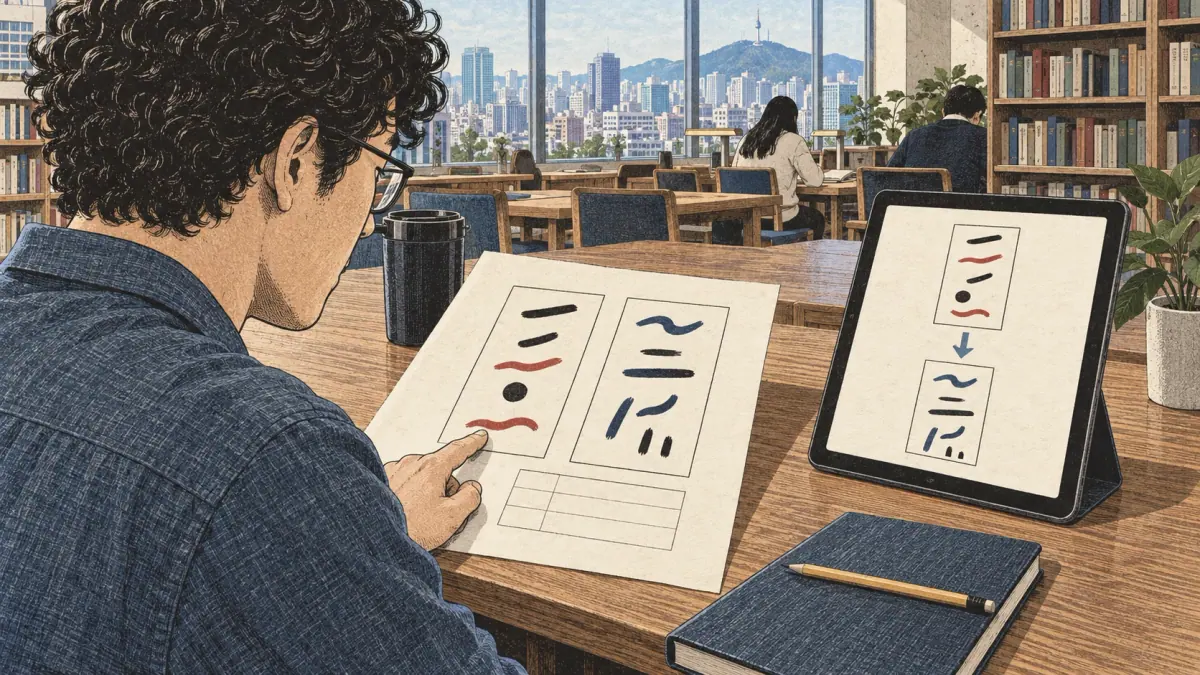
These four walkthroughs show how to check a screenshot, menu, document and handwritten note. Work from your own source image: the correct transcript preserves its visible characters, numbers and reading order. Compare the output with that image before deciding which corrections to make.
A Clean Greeting Screenshot
Input: A screenshot containing one short printed greeting on a plain background. Crop to the greeting while leaving space around the outermost characters.
Expected transcript: The same sequence of syllable blocks and any visible punctuation, on one line. Compare the number and order of blocks before copying. An extra space, missing final character or added punctuation is a transcription difference even if the general meaning remains recognizable.
Correction and export: Repair only differences supported by the screenshot. Copy the confirmed line into a plain-text note and reopen it to check that the characters survived. Keep the image until the note is checked.
A Menu Price and Mixed-English Sign
Input: A menu line with a Korean item name, the printed amount 8,000 and an English heading above it. Keep the heading only if you need it in the transcript.
Expected transcript: The visible item name, the amount and the English heading remain separate pieces. Do not attach the heading to the item name or reinterpret the amount because a translator suggests another dish.
Correction and export: Compare every digit and punctuation mark. If recognition returns 8,OOO with letters in place of zeros, the image determines the repair. Save the exact displayed amount in the transcript; create a numeric spreadsheet field separately if needed.
A Two-Column Page and a Merged Table
Input: A page with two article columns followed by a table whose heading spans several cells. Start by identifying the intended reading order visually.
Expected transcript: Each article column reads as a complete passage before the next begins. The table heading describes the correct cells; text from adjacent rows does not become one sentence.
Correction and export: Recognize separate regions if a whole-page result interleaves columns. Compare table labels, row boundaries and amounts before choosing a spreadsheet export. Plain text can preserve the words while losing the relationships, so record those relationships explicitly when they matter.
A Handwritten Study Note
Input: A photograph of your own handwritten note, including one faint or crossed-out word.
Expected transcript: Only legible writing can be confirmed. The faint word remains unresolved if neither the source nor the recognized candidates identify it reliably.
Correction and export: Try a sharper crop or a new photograph, then compare again. Ask the writer to clarify the word when possible. Save a corrected study passage only after resolving the doubtful span; keeping an uncertain note separate prevents it from becoming a memorized spelling. Better source images make all four workflows easier.
Which Photo Settings Improve Korean OCR?

Photo settings that preserve sharp strokes, level lines and an unobstructed background help recognition. Choose a focused original image with even lighting, then crop and straighten it. More aggressive enhancement is useful only when it preserves the characters you need to read.
Crop, Rotate and Correct Perspective
Place the camera as squarely above the page as practical. A page photographed at an angle can make the top line narrower than the bottom line. Straightening rotation fixes tilted lines; correcting perspective addresses the angled page shape. Neither operation restores writing that was never captured clearly.
For a sign with unrelated decoration, crop to one text region first. For a document, retain enough margin to avoid cutting through the first or last block. An extremely tight crop can lose a stroke, punctuation mark or line of small print.
If a first attempt mixes lines, inspect orientation and region boundaries before changing models. A second attempt using one paragraph can reveal whether the problem is the page layout or the character shapes. Keep the original file so preparation remains reversible.
Keep Thin Strokes and Punctuation
Avoid flash glare across the letters. Reposition the light or camera when a shiny menu creates a bright strip. A shadow across a word can be more damaging than a slightly gray but evenly lit background.
Enlarging a blurred image does not create missing detail. Take a new photograph when possible; otherwise compare restrained contrast changes and keep the version whose small marks remain visible. Repeated compression can blur punctuation into neighboring letters, so use the original screenshot or camera file instead of a thumbnail.
Inspect amounts and short labels at enlarged size after preparation. A missing comma or period may change how a number is understood. No single resolution setting guarantees success for every font and page: readable strokes and the resulting transcript are the practical checks. PDFs add another question: whether recognition is needed at all.
Korean PDFs, Tables and Document Exports
A Korean PDF with selectable text may allow direct extraction; a scanned PDF needs image recognition. Check the source type before downloading a recognition model or processing every page. Select only the needed pages when the document contains unrelated material.
Can I Make a Scanned Korean PDF Searchable?
A searchable PDF needs a text layer aligned with the page image. Recognition can supply candidate text, but the layer is useful only when its spelling and positioning match the source. A search result landing on the wrong line is a layout problem even if some words were recognized correctly.
Use a searchable-PDF export only when that option is available for your result. Check a known word using search, then select a line and compare the copied text. Existing embedded text can also be incomplete or ordered strangely, so direct extraction still needs inspection.
Text Flow, Cells and Source Geometry
Choose an export according to what you need to preserve:
| Format | Useful For | Check After Export |
|---|---|---|
| TXT | Plain passages and study notes | Korean characters, spacing and line breaks |
| CSV | Rows of structured data | Encoding, delimiter and column boundaries |
| XLSX | Spreadsheet cells | Names, numeric fields and merged-cell relationships |
| DOCX or RTF | Editable document text | Paragraph order and formatting |
| Searchable PDF | Image plus selectable text | Search, selection and text alignment |
Available formats depend on the result and export controls. A format label alone does not prove that a photographed table became a faithful spreadsheet. Compare each row and cell before sorting or calculating.
Keep the raw transcript distinct from parsed amounts and reconstructed cells. When exporting text to a spreadsheet, choose a Korean-compatible encoding and inspect the imported file. Formatting improvements should never conceal uncertain characters. Exporting also creates a saved copy, so include downloaded files when deciding where your document remains stored.
How Private Is on-Device OCR?
On-device OCR performs recognition in your browser rather than sending the source image to a recognition server. Check the selected processing mode before using a sensitive file. Local recognition, model downloads, saved browser data and external text handoffs are separate activities.
What Happens in Cloud Recognition?
Cloud recognition requires transferring source material to an outside processor. Before choosing any cloud action, check what will be sent, which service receives it and whether that action is available. An unavailable service cannot produce a cloud result, and a local result should not be described as having received an additional server check.
Translation is also a separate transfer when it opens an external service. Confirm the exact text you intend to share and remove unrelated personal information. Copying a line manually gives you a chance to inspect it before sending it onward.
Recognition confidence does not establish privacy. A line can be transcribed accurately through either a local or remote route. Privacy depends on the processing path and subsequent actions, while accuracy depends on the result's agreement with the source.
Offline Models and Deletion
Local OCR still needs software and language data. A first model download uses an internet connection even though the image itself is processed locally. Prepare the offline pack while connected, then try a small non-sensitive sample offline before depending on it during travel.
Browser storage can be cleared or evicted, so a previously downloaded pack may need another download. Changing browser, device or profile can also mean the necessary pack is absent. Avoid interpreting an unavailable offline engine as an unreadable source image.
Distinguish the source file on your device, the current working result, any explicitly saved session and your exported files. Resetting the tool does not remove a download from your computer or a copy you pasted into another application. Use the available deletion controls for saved work and manage exported files separately. Private results are working documents, not public pages to share through a guessed URL. These distinctions are especially useful when difficult writing requires another person's help.
Handwriting, Hanja and Difficult Layouts

Handwriting and difficult layouts require closer checking than a clear printed paragraph. Joined strokes, crossed-out words, curved lines and annotations can defeat automatic recognition. An editable result is a starting point for comparison, not evidence that every character was read correctly.
Can Korean OCR Read Handwriting?
Korean OCR may return candidates for handwriting, but a readable result cannot be promised for every writer or image. Try a focused region and a quality attempt where available. Compare the letters with the source rather than accepting a sentence because it fits the topic.
For an unreadable word, follow a short manual workflow: enlarge the source, check another occurrence by the same writer, ask the writer if possible and type only the confirmed reading. Keep a note of unresolved spans outside the passage you plan to study. Guessing a whole word to fill a gap can hide the exact place where the evidence ends.
Hanja and historical writing introduce characters or forms that a Korean Hangul-oriented attempt may not identify reliably. Decorative signs and vertical text can also require different reading-order decisions. Preserve a source crop and seek someone who can read the material when automatic candidates do not resolve it.
Do not treat a model's quality label as a handwriting accuracy percentage. Performance depends on the material being measured, and a result for clean printing says little about a handwritten note. When a reliable transcription is required, human comparison with the actual source remains essential. Confirmed text is then ready for a learning activity.
From Corrected Text to Korean Study
Corrected OCR text becomes useful study material when you understand its source, spelling and context. Choose one confirmed sentence or short passage before importing a whole document. Keep the source image nearby until you have checked what the passage means.
What Should I Study after Extracting a Sentence?
Study the confirmed words and sentence structure first, then use a reading aid if needed. A dictionary helps check a particular word; translation gives a broader meaning that still needs comparison with the original. Context such as who is speaking and where the sentence appears can change your interpretation.
Use the Korean keyboard layout guide to type a corrected Hangul syllable instead of copying a doubtful candidate. Once spelling is settled, romanize your corrected Korean text when Latin letters would help you follow a passage. Keep the Korean original beside the reading aid so you continue practicing the script.
Choose your own notes or material you have permission to reuse when creating flashcards. Include enough context to understand the example, but exclude unrelated private information. Do not turn unresolved OCR spans into cards: repeated practice makes a mistaken spelling harder to unlearn.
For the next exercise, hide the transcript and read from the image, then compare with your confirmed text. The remaining questions address common obstacles to getting that usable transcript.
Korean Image to Text: Frequently Asked Questions
Why is a clean image returning no text?
Check the selected language, crop tightly around the writing and try the quality model. An empty result is retained honestly; type any unreadable letters yourself. Also inspect orientation and confirm that the preview contains actual writing. A sharp-looking background does not establish that the letter strokes are readable.
Will the downloaded text keep Korean characters in Excel?
Choose UTF-8 CSV with BOM, or XLSX. Spreadsheet exports store formula-like text safely. Review the imported characters before using prices or names. If a CSV opens with broken characters, import it explicitly as UTF-8 rather than repeatedly saving the damaged display. Check row and column boundaries as well as spelling.
Can I recognize only one page of a PDF?
Yes. Enter the page number in Pages and reading order. Embedded PDF text is extracted locally; scanned pages need the selected OCR model. Confirm that the preview shows the intended page before proceeding. Checking one page first also helps identify whether the document needs recognition or direct text extraction.
Why does my first offline attempt need a download?
OCR needs its worker, engine and chosen language models. Save an offline pack while online first. Browser storage eviction may require another download. Test the pack with a small sample before disconnecting. A new device or browser profile may need its own download even when your original browser worked offline.
How can I correct a syllable when I cannot type Hangul?
Use the confusable-letter picker for a few common shapes, or open the Korean keyboard to type a corrected syllable. Compare the result with the source before confirming. Work on the smallest uncertain span and retain the surrounding correct text. If the image cannot resolve the shape, leave that span unresolved.
Use Korean image to text for a checked transcript: preserve the source, resolve doubtful lines and choose an export that fits your next task. Browse the Korean learning tools to continue with the confirmed passage.