How to Use the Korean Subtitle Editor
Start with one recording you are allowed to use and a transcript or caption file. Work through five actions: load the files, select a cue, listen and set its boundaries, check warnings, and export. A cue is one timed piece of caption text. Its start and end determine when a player displays it.
Before you start: keep an unchanged copy of your recording and transcript, use headphones if possible, and choose the player or lesson activity that will receive the result. No account is needed for local manual editing. Preparation time depends on recording length and the amount of correction; plan to listen rather than treating conversion as a timing check.
Key facts: captions contain text and times, not the recording. Source speech and translation belong in different fields. SRT and WebVTT write milliseconds differently. JSON preserves project information that a plain caption file cannot. Conversion without media leaves recording-duration checks incomplete.
- Load permitted media and text. Choose your local recording and import or paste the captions. Inspect the text preview before accepting it. Success means readable characters and recognizable cue boundaries. If characters look broken, fix the encoding first rather than editing hundreds of corrupted letters.
- Select a cue. Start with a short phrase and check its source text against the recording. Success means the selected line corresponds to the speech you hear. A common mistake is timing an English translation against Korean words; keep the Korean speech transcript as the timing reference.
- Listen and set boundaries. Play around both edges and enter or adjust the times. Success means the complete phrase plays without clipping its beginning or ending. Leave room for the actual speech rather than selecting only the largest waveform peak.
- Check warnings. Examine reversed times, overlaps, short durations and media bounds. Success means each remaining warning has an understood reason. An overlap may represent simultaneous speakers, so avoid deleting valid speech merely to clear a flag.
- Export and reopen. Download the chosen caption file and a JSON backup. Success means the target player shows the intended text at the intended moments. Exporting without testing the result can hide format losses or timing rounding.
A short successful test gives you a repeatable process for the rest of the recording.
What Is Korean Transcript Alignment?
Korean transcript alignment connects the words spoken in a recording with positions on its timeline. A transcript answers “What was said?” Alignment answers “When was it said?” Translation answers a different question: “What does it mean in another language?” Keeping these jobs separate helps prevent a readable translation from being mistaken for a word-for-word speech record.
Manual timing means listening and placing boundaries yourself. Automatic transcription proposes text from audio. Forced alignment takes an existing transcript and attempts to locate that text in the audio. A machine-generated timestamp therefore does not prove either that the words are correct or that their boundaries are suitable for a learning exercise.
Imagine a teacher with an accurate ten-line classroom dialogue. The text may need no changes, yet each line still needs a start and end. Conversely, an imported subtitle may have useful times but the wrong text. Fix the layer that is wrong instead of replacing everything together.
Cue-level alignment is enough for many captions. Word-level timing is a separate level of detail and should not be inferred from a single sentence boundary. Decide the detail your destination needs before choosing an export.
SRT, WebVTT and Caption Formats Compared
Caption formats differ in time syntax, presentation features and the information they preserve. Choose a format for the receiving player, and retain JSON when you need to continue editing the project.
| Format | Main Use | Timing and Presentation | What to Check |
|---|---|---|---|
| SRT | Compatible video players and caption editors | Numbered cues; comma before milliseconds | Player support and loss of advanced styling |
| WebVTT | Web caption tracks | Decimal point before milliseconds; format-specific cue settings | Whether the receiving player supports those settings |
| ASS | Styled subtitle workflows | Can include positioning and effects | Plain export may discard presentation features |
| TXT | Reading and text correction | Plain text without a complete timed project | Keep a separate timing backup |
| JSON project | Reopening editorial work | Cue identities, separate text fields and provenance | Supported project schema and separate media file |
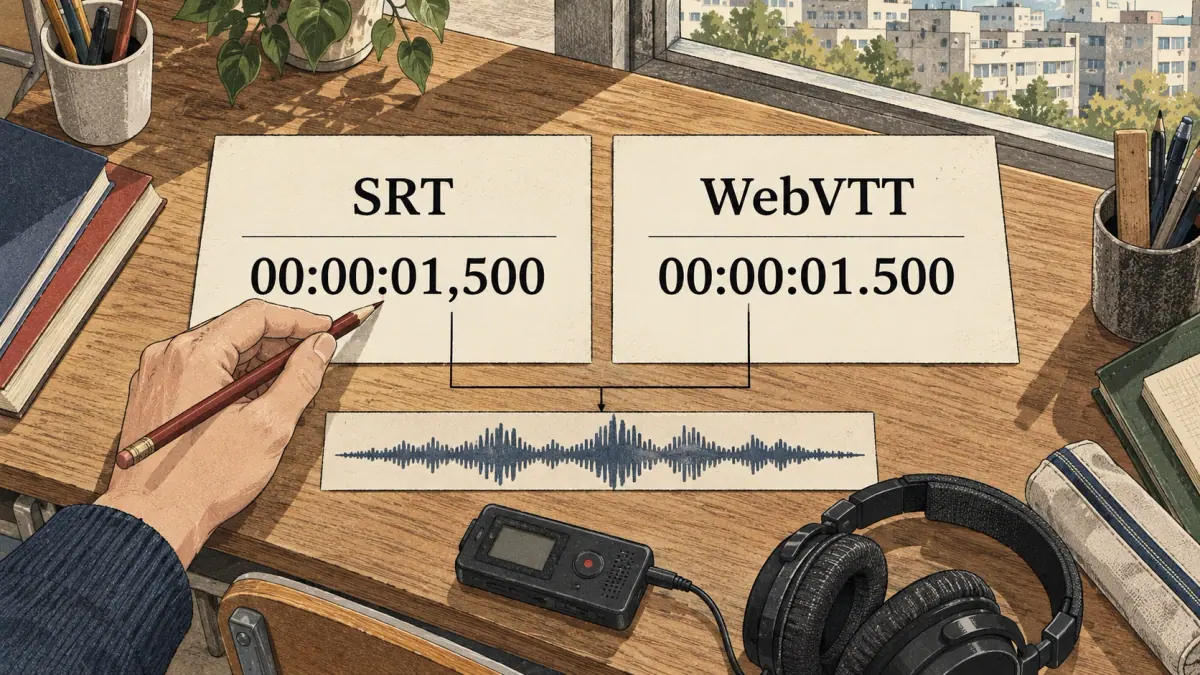
A time such as 00:00:01,500 in SRT and 00:00:01.500 in WebVTT expresses one and a half seconds. Changing that separator is a format conversion, not a correction to the underlying speech timing. A caption exporter also has to write valid headers and cue structure.
UTF-8 is a practical text export choice for Korean characters. Inspect the downloaded file in the destination instead of assuming that a readable editor preview guarantees compatible playback. Advanced binary subtitles and media-container tracks are different from the supported local text profiles; do not expect a text-file conversion to extract every embedded track.
Which Format Should a Teacher Export?
Use WebVTT for a compatible web player, SRT for a destination that requests it, and JSON to preserve editable learning information. Use TXT when a colleague only needs to correct wording. Send the recording separately when required: choosing a caption format never turns the text file into an audio package.
How Do Shifting and Drift Correction Differ?
Shifting adds the same time offset to every selected boundary. Drift correction changes how source times map onto a target timeline. Use a shift when captions are consistently early or late; use two anchors when the mismatch grows over time.
For a shift, the formula is new time = old time + offset, with all values measured in seconds. An offset of −0.5 moves a cue half a second earlier. An offset of +0.5 moves it later. Cue duration stays the same unless a boundary becomes invalid and requires attention.
For two-anchor correction, let source anchors be s1 and s2, and matching target anchors be t1 and t2. Calculate a = (t2 − t1) / (s2 − s1) and b = t1 − a × s1. Each source time s becomes t = a × s + b. The scale a changes spacing and duration; b provides an offset.
Two identical source anchors cannot define a scale because the denominator is zero. Reversed or mismatched anchor pairs can imply an invalid direction. Choose two distinct, recognizable speech events and confirm that each target event corresponds to the same source event.
Preview beginning, middle and ending cues before accepting a correction. A deleted scene or inserted pause creates a discontinuity that one linear mapping cannot repair. In that case, work on separate sections or place boundaries manually. Save a backup so you can recover the previous timeline if the preview reveals a bad match.
Four Worked Timing and Export Examples
The times below are synthetic arithmetic examples, not timestamps for the linked site recordings. Replace them with boundaries heard in your own permitted media.
Example 1: Prepare Four Classroom Cues
Suppose you record four short turns for a café lesson. Give them stable identities such as cafe-01 through cafe-04, keep the original speech text separate from translations, and time each turn by ear. For the first cue, an illustrative start of 1.000 seconds and end of 2.500 seconds produces a duration of 1.500 seconds.
An SRT export writes the interval as 00:00:01,000 --> 00:00:02,500. A WebVTT export uses decimal points. The underlying interval has not changed. A lesson manifest can connect the cue identity to the relevant content and recording identity, while the media remains a separate asset.
The Korean café dialogue shows how a classroom exchange can be organized into turns. Use that structure to plan your own material; the example interval here does not describe its audio.
Example 2: Repair Captions That Are Half a Second Late
A cue currently runs from 1.500 to 3.000 seconds, but listening confirms that both boundaries should occur half a second earlier. Apply −0.500 seconds. The result is 1.000 to 2.500 seconds, still 1.500 seconds long.
Check another cue near the end. If it also needs the same offset, a shared shift is plausible. If it needs a larger correction, the problem includes drift. A negative result near the beginning needs explicit attention; avoid silently treating a clipped boundary as a successful correction.
Example 3: Correct Drift with Two Anchors
Match source time 10 seconds to target time 12 seconds, and source time 20 seconds to target time 24 seconds. The scale is (24 − 12) / (20 − 10) = 1.2, and the offset is 12 − 1.2 × 10 = 0. Source time 15 therefore maps to 18 seconds.
A cue from 15 to 16 seconds becomes 18 to 19.2 seconds. Its duration increases from one second to 1.2 seconds. A constant two-second shift would put the first anchor correctly but map the second to 22 rather than 24 seconds. That difference explains why a shift cannot fix this example.
Example 4: Convert Styled Captions to Plain Captions
Import a permitted ASS file containing readable Korean text and positioned captions. Export a plain SRT track, then inspect the text and times. The words may remain intact while positioning and effects disappear because SRT cannot carry the same presentation information.
Keep the original source in the project backup and compare the exported result in the target player. Preserving spelling and preserving styling are separate checks. A correct conversion can still look different, so choose the format before investing time in presentation details.
How Are Hangul Length and Reading Speed Counted?
Hangul caption length should reflect visible text rather than the number of bytes in a file. Reading speed divides a selected character count by cue duration. The important question is which count the profile uses.
A grapheme is a visible text unit as experienced by a reader. Unicode text can represent some visible forms with different underlying sequences. NFC normalization gives compatible composed text a consistent representation, helping prevent technical differences from producing misleading length comparisons. Normalization is a counting and representation step; it is not permission to rewrite the transcript.
Visible caption text also differs from its markup. Formatting instructions are not extra words for the learner to read. Count the displayed content according to the selected profile rather than treating tags as letters. Spaces, punctuation and non-Korean text may receive different treatment in a generic count and a Korean weighted count.
For example, if a profile counts 12 visible characters in a two-second cue, the generic rate is 12 / 2 = 6 characters per second. If another profile assigns a weighted count of nine to that same content, its rate is 9 / 2 = 4.5 weighted characters per second. These numbers cannot be compared as though they measure identical things.
A high rate can mean the cue is too short, the text is too long, or the chosen profile is unsuitable. Listen before extending a boundary: stretching it into the next speaker's turn may create a different problem. For learners, also consider vocabulary familiarity and whether the caption includes a translation. A numerical warning prompts inspection; it does not measure comprehension.
Korean Caption Profiles and Line Breaks
A caption profile sets expectations for a particular audience and destination. Teaching captions, translated viewing subtitles and accessibility captions serve different purposes, so their warnings should not be treated as interchangeable rules.
| Profile | Main Reader Task | Editorial Priority |
|---|---|---|
| Teaching | Match Korean text to speech and study it | Preserve useful phrase units and repeatable audio boundaries |
| Korean interlingual captions | Read Korean while following another language | Follow the receiving platform's subtitle requirements |
| SDH | Follow dialogue and relevant audible information | Preserve speaker distinctions and meaningful sound information |
SDH means subtitles for deaf and hard-of-hearing viewers. A teacher's simplified practice track may omit information that an accessibility track needs. Conversely, detailed sound descriptions may distract from a narrow dictation exercise. Select the purpose before shortening a cue.
A 16-character line advisory can help flag long lines in a selected Korean profile, but it is not a universal law for every lesson, player or provider. Check the actual target requirements and preview the result at the intended display size. English line-length defaults should not automatically become Korean teaching rules.
Place line breaks where a reader can follow the phrase. Avoid separating closely connected grammatical material merely to make both lines equal in length. Preserve the original text and seek language guidance when a break or shortening would require interpretation. Automatic wrapping can suggest presentation; it cannot decide which words may be removed without changing meaning.
A cue that fits its line limit may still be hard to read if it appears too briefly. Check length, duration and surrounding speech together, then preserve any changed wording separately from the source transcript.
Can Automatic Timing Change the Transcript?
Automatic timing should locate the transcript you supplied; it should not silently replace your source with different wording. Keep original source text, a checked verbatim transcript, display captions and translations as distinct layers so changes remain understandable.
Source text records what you imported. The verbatim transcript records the speech you have confirmed. Display captions may use different grouping for readability. Translations express meaning in another language. A change to display grouping should not erase the original speech, and an English translation should not become the acoustic reference for Korean alignment.
Machine transcription and timing suggestions can contain uncertainty. Before accepting them, compare the proposed wording with the recording and inspect changes to names, omitted words and repetitions. Listen to a boundary marked as estimated or interpolated rather than assuming its precise-looking number is evidence of certainty.
Select Transcribe to download the optional on-device speech model, with its size shown before download. Use the editable transcript to propose cues, then check and accept selected segments. Recognition segment timestamps are approximate, not forced alignment of your corrected script. Editing the transcript removes its segment timing; set missing boundaries manually. Your existing track remains, and Undo restores it after acceptance.
Why Do Names and Numbers Need Timing Attention?
A written number is a display choice, while the audio contains spoken words. Alignment may need a separately confirmed spoken-form mapping instead of matching digits directly to sounds. The café lesson's price line illustrates why displayed price information and a spoken transcript are related but different layers.
Personal names, borrowed terms and mixed-language passages may also fall outside an automatic system's useful coverage. Preserve the uncertain region, add manual anchors and ask a qualified Korean speaker about wording you cannot confirm. A plausible-looking replacement is less useful than an honest unresolved span with its original audio intact.
Keeping Local Files Private
Local editing and optional speech recognition keep your media and caption work on your device. The model download fetches software and weights; it does not upload your recording. No hosted transcription, machine translation or classroom sync is provided. Cancel or delete the downloaded model through its controls, and export projects explicitly when you want to move them between devices.
Choose local files or a direct recording URL you are authorized to use. A URL does not grant permission to copy the recording, and browser access restrictions can prevent a remote file from loading. A lawful local copy is often easier to manage than an unreliable remote link. Avoid building a classroom project around media that another teacher cannot access.
Treat browser storage and downloaded backups separately. Enable autosave only when you want the project retained on that device, especially on a shared computer. Use the editor's erase controls for stored project data, and manage downloaded files through your device's file system. Clearing browser data does not remove a backup you saved elsewhere.
A JSON backup contains project information but not the recording. Keep both in a location you control, with names that identify the matching version. Account-free editing does not replace your responsibility to organize classroom files and obtain permission for any recording you share.
Making Shadowing and Dictation Materials
A synchronized caption project can become a learning resource when its text, audio boundaries and intended task are checked together. Save stable cue identities, connect them to the recording and content identities, and retain information about how each time was established.
For shadowing, prepare phrases that learners can replay without losing the opening sound or sentence ending. The Korean shadowing guide uses a sequence of listening, reading, reading along, slower shadowing, normal-speed shadowing and recording. A useful timed project supports those activities through reliable phrase selection rather than a large set of untested timestamps.
For dictation, keep the answer text separate from what the learner sees before listening. The dictation practice guide distinguishes sound, spelling and spacing errors. A clipped cue can create a false sound error, while an incorrect answer transcript can make a correct learner response look wrong. Check the exercise as a learner before distributing it.
Translations can accompany the exercise without replacing its Korean reference text. Retain the original source and document any display simplification. If you split one cue into two, keep the relationship clear so later corrections can reach the appropriate activity.
Choosing a completion or checking state in your project records which cues you have checked. Listen again after changing the transcript or recording so that the state still describes the current files. Share only media and text you have permission to distribute. Before a colleague imports the manifest, confirm that their receiving activity supports its fields and can locate the separate recording.
What Causes Missing, Overlapping or Broken Captions?
Broken captions usually come from text encoding, invalid times, format incompatibility or a mismatch between the caption track and recording. Diagnose the category before changing the words.
Unreadable Korean characters suggest an encoding problem. Preview UTF-8 or UTF-16 as appropriate for the source. Legacy Korean files may require a browser-supported CP949 decoding path; CP949 and strict EUC-KR should not be assumed identical. Return to the original file when possible, because editing replacement characters cannot reliably recover the lost source.
Missing captions can come from empty text, malformed cue structure or times outside the loaded recording. Check a missing cue's start and end numerically. End time must follow start time. A cue shorter than the destination's time precision may collapse after rounding, so inspect the exported interval as well as the editor value.
Overlapping cues may represent an error or two people speaking together. Listen to both speakers and mark a deliberate overlap intentionally. A general caption player and a single-answer learning exercise may handle the same overlap differently; create an appropriate track for each use.
Media playback failures can involve an unsupported codec even when the file extension looks familiar. Caption conversion cannot repair the video codec. Use a playable permitted recording before attempting acoustic checks.
Long silent sections need no invented speech. If automatic output fills silence with words, compare it with the source and remove unsupported text. If captions gradually diverge, inspect anchors and whether the recording has edits; a single global shift may be insufficient. Work from the recoverable source so each repair addresses the actual fault.
When Should an Editor Listen to the Audio by Ear?

Listen by ear whenever wording, speaker identity or a boundary is uncertain. Noisy recordings, rapid speech, overlapping speakers and mixed-language passages deserve particular attention. A waveform shows changing signal amplitude; a peak is not proof that a particular word starts there.
Check both sides of a boundary at normal playback speed. A short loop can help isolate a detail, but also listen to the whole phrase so the edit preserves its meaning and rhythm. Slower playback can assist inspection without proving a disputed spelling.
When you cannot identify the Korean confidently, preserve the original span and ask for language help. When words are clear but timing is uncertain, use manual anchors and record that uncertainty. Treat linguistic correctness and acoustic placement as separate decisions. A useful handoff tells the next editor which question remains unresolved instead of presenting every timestamp as equally reliable.
Frequently Asked Questions
Can I edit captions without loading a video?
Yes. Import a caption file or type your own text and times. Caption conversion works without media, but media bounds remain unverified. Attach your recording when you want to listen and confirm boundaries. A readable export alone does not prove that the cues match the recording.
Will a subtitle file contain my recording?
No. SRT, VTT and other text-caption files contain captions and times, not audio or video. JSON projects retain cue identities and timing provenance, but do not bundle your recording. Reattach your own recording separately when reopening a project, and send permitted media separately when a colleague needs it.
Can I retain two speakers at the same time?
Yes. Overlapping cues are preserved and flagged for checking. Mark an overlap intentional when simultaneous speakers are part of your source. Overlap can be valid in WebVTT; some learning activities need separate nonoverlapping tracks. Listen to both voices before deciding whether to retain the overlap or prepare another track.
Why did my caption style disappear after export?
Caption formats support different features. SRT cannot retain ASS positioning or effects. The original imported source is preserved in JSON, while the plain caption track is exported into the chosen supported profile. Inspect the export notice before downloading, then check presentation in the player that will display the captions.
Can another teacher open my project offline?
A teacher can import your downloaded JSON into the loaded editor and reattach a lawful local recording. The backup does not include media. Manual editing works without a speech model. Optional recognition needs its own explicit download and cached model on that device. Test the loaded editor before a lesson.
Keep Your Korean Subtitle Editor Project Useful
Keep the Korean subtitle editor project alongside its unchanged source files, the latest caption export and the matching recording. Give versions clear names so a colleague can distinguish a timing correction from a wording correction. Save the project before a major shift, rewrap or format conversion.
Choose the next learning activity based on what your cues support. Use the linked shadowing method when students need to follow speech rhythm, and the dictation method when they need to write what they hear. Return to the café dialogue for an example of short conversational turns, or explore other Korean learning tools when the next task is broader than preparing captions.
Before sharing, reopen the exported track and play several cues, including the beginning, a difficult middle passage and the ending. Confirm that text, translation and recording versions still agree. Include permission information and unresolved questions in your handoff, especially when another person will publish the lesson.
When you find a problem later, record the cue identity, the recording version, the current boundary or text and the proposed correction. That information makes a specific repair possible without rebuilding the entire lesson. Reliable learning material comes from preserving the source, testing the export and making each change traceable.